
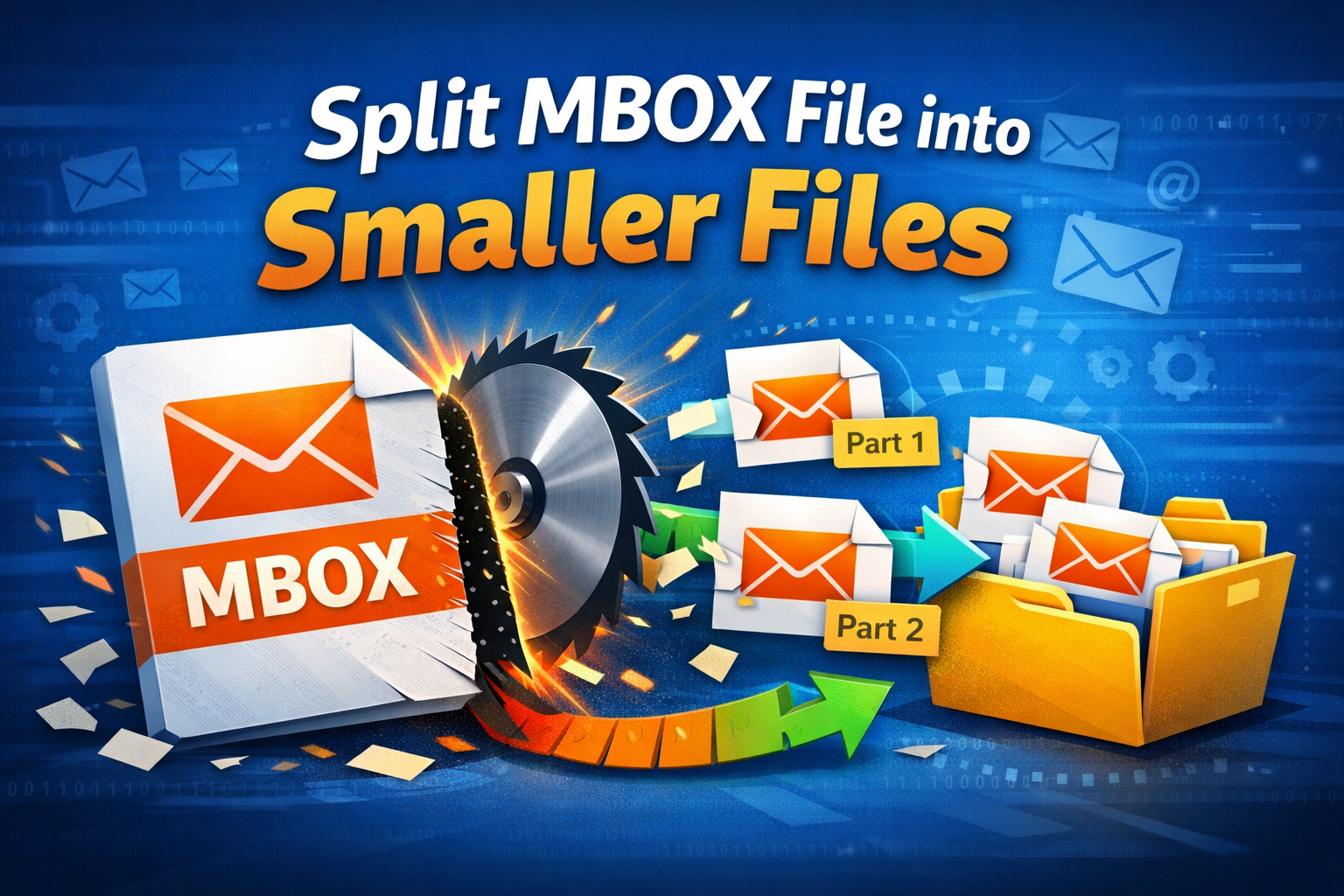
MBOX files are responsible for saving emails in their original Internet format. It also helps users keep multiple email messages bundled together in one file. This can sometimes lead to difficulties while handling such huge files, as it can lead to errors and increase the risk of corruption. Hence, to solve this issue, it becomes necessary to split their MBOX file into different smaller files. In this article, we will talk about some of the useful methods to split MBOX file into smaller files and how one can avoid common mistakes while dividing them into smaller parts.
MBOX Splitter Explained
Before moving ahead, it is important to know what exactly a MBOX spiller do. In simple terms, an MBOX splitter is a tool or a method that is designed to separate a large single MBOX file into multiple smaller files or sections. Such divided files can be created on different criteria, like file size, date range, sender, or number of emails.
The main purpose to split MBOX file into smaller files is to reduce the size of oversized mailbox files without losing any important email data or attachments. By doing so, users can easily handle and sort them into email clients, back up safely, and perform without any hassle.
Reasons to Split MBOX File into Smaller Files
Carrying larger files can usually cause trouble for those who are using it. So, this might lead to slow performance, take a longer time when loading, and even a higher risk of corruption. Individuals who want to manage and organize their files need to separate the MBOX file into smaller files to operate smoothly and effortlessly. Given below are some basic factors to split MBOX file into smaller files:
-
It will prevent the mailbox corruption that is caused by oversized MBOX files
-
This helps to improve email client performance and even loading speed
-
Dividing it makes backup and restoration processes faster and safer
-
One can easily organize and manage emails
-
There are low chances of crashes and errors in email applications
-
Helps meet file size limits during email migration or import
-
Makes it easier to search and access specific emails
Author’s Suggestion: Read this blog if you want to convert MBOX to HTML formats with verified methods.
Best Methods for Splitting Large MBOX Files
Nowadays, it has become easier for anyone who wants to split MBOX file into smaller files. As there are several methods for this, one can use any technique according to their requirements. Dividing files can be based on certain criteria like file size, date range, sender, etc. Those who need basic manual approaches using an email client can be time-consuming, and there can be a risk for large datasets. In contrast, using a dedicated MBOX splitter tool can make your work easier and can also prevent your email data from being lost along with attachments.
#1. Using Dedicated MBOX Splitter Software
One of the best methods to split MBOX file into smaller files is using a dedicated software like SysTools MBOX Splitter Tool. This software not only saves your time and efforts but also can handle larger or complex files, keeping them secure without any data loss. Follow the steps for better results:
-
Start by importing the MBOX file you want to split.
-
Then, choose a splitting option, such as by file size, date range, sender, or folder.
-
Select the destination folder where you want to save the smaller MBOX files.
-
Now, start the splitting process by tapping on the split or convert button.
-
To ensure that all your emails, attachments, and metadata are intact, check the output files.
#2. Manual Approach to Separate MBOX Files
A user can use a manual method if they do not wish to use a third-party tool. To split MBOX file into smaller files, it mainly involves email clients like Thunderbird, Apple Mail, or Outlook to create smaller and more manageable mailboxes. This is suitable for those who are handling smaller MBOX files, but are not ideal for bulk or complex email data. One of the drawbacks is that it is time consuming ands are prone to errors.
-
Open the email client of your choice that contains your MBOX file
-
Create a new folder where you want the smaller MBOX files to be saved.
-
Now, select the emails you want to export
-
Save the selected emails as a new MBOX file using the client’s export feature.
-
Repeat the process for other sets of emails until the original MBOX is divided into smaller files.
-
Verify the new MBOX files to ensure all emails, attachments, and metadata are intact.
Common Errors While Splitting MBOX Files
Many users may face an issue when they try to separate an MBOX file into multiple files, as it cannot be error-free. Problems such as improper methods, corrupted source files, or tool limitations can lead to loss of data, incomplete email splitting, or even compatibility issues with email clients. Hence, it is important for users to understand some of the common errors so that they can take precautions when they split MBOX file into smaller files.
-
There can be a loss of email attachments or missing message details during the splitting process
-
Data corruption can be caused by using unreliable or outdated tools
-
Incomplete splitting can occur when large MBOX files exceed their size limits
-
The original mailbox structure and folder hierarchy can be lost
-
One might face an issue when opening split MBOX files in an email application
-
Errors caused by damaged or corrupted MBOX files
-
While handling large mailboxes, slow processing or crashing of the application can happen
-
After splitting, there can be missing emails or even duplication
End Note
It is always easy to manage and organize a smaller file as compared to larger files. Huge MBOX files can have a negative impact on email performances and there is also a risk of corruption, which can lead to difficulty in managing emails. That is why it becomes necessary for users to split MBOX file into smaller files. Here, a person can select any method according to their needs, but before using it, always backup your original MBOX file. Also, taking precautions can help users to maintain a healthy and error-free email environment.

 Arabic
 French
 Spanish
 Portuguese
 Deutsch
 Turkish
 Dutch
Dutch
 Italiano
 Russian
 Romaian
 Portuguese (Brazil)